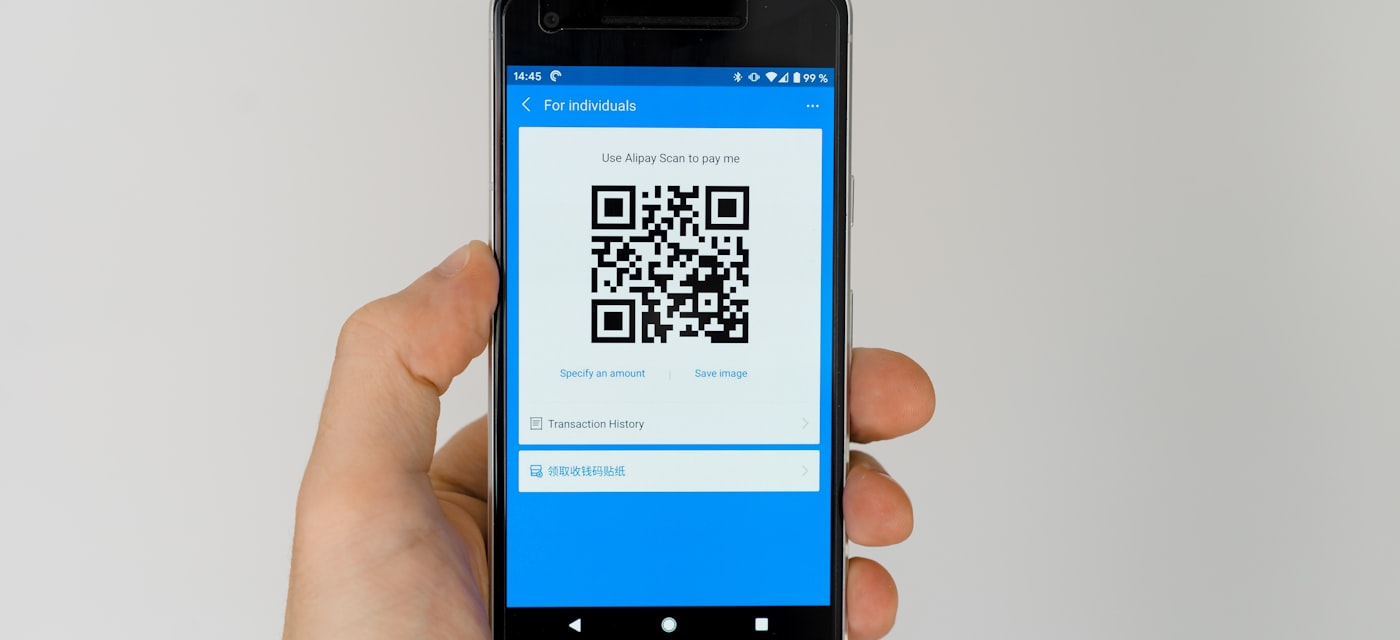
What Is a QR Code and Why Are They Everywhere?
Those little black-and-white squares are called QR codes — short for Quick Response codes. They were invented in 1994 by a Japanese company called Denso Wave, originally for tracking car parts. Fast forward to 2026, and they are literally everywhere: restaurant menus, product packaging, event tickets, business cards, Wi-Fi passwords, and payment terminals.
A QR code is essentially a two-dimensional barcode that stores information — usually a URL, but it can also contain plain text, contact details, Wi-Fi credentials, calendar events, or app download links. The beauty of QR codes is that they work instantly: point your camera, tap once, and you are there.
How to Scan a QR Code on iPhone
If you have an iPhone running iOS 11 or later (which is virtually every iPhone still in use), scanning QR codes is built right into the Camera app. No download needed.
Step-by-step:
- Open the Camera app on your iPhone.
- Point it at the QR code. Keep your phone steady — you do not need to take a photo.
- A notification banner will appear at the top of the screen with the link or action.
- Tap the banner to open it.
Pro tip: If nothing happens, go to Settings → Camera and make sure Scan QR Codes is turned on. It should be enabled by default, but it is worth checking.
What if your iPhone camera does not detect the QR code?
Sometimes the built-in scanner struggles with damaged codes, low contrast, or unusual formats. In that case, a dedicated scanner app will do a better job. We recommend QR Code Reader Without Ads — it is free, has no ads at all, and does not collect any of your data. It also lets you scan QR codes from screenshots and saved photos, which the built-in camera cannot do.
How to Scan a QR Code on Android
Most Android phones from 2018 onwards can scan QR codes directly from the Camera app, but the experience varies by manufacturer.
Step-by-step (stock Android / Pixel):
- Open the Camera app.
- Point it at the QR code.
- A pop-up or link chip will appear — tap it to open.
Samsung devices:
Samsung phones have QR scanning in the Camera app, but you can also swipe down the notification shade and tap the Scan QR code quick tile.
If your Android camera does not scan QR codes:
Older Android phones or budget models may not have built-in QR scanning. Your options:
- Google Lens — open Google Lens (available in the Google app or Google Photos) and point it at the code. Lens is pre-installed on most Android phones.
- QR Code Reader Without Ads — a lightweight, ad-free scanner that works on any Android device. No account needed, no tracking.
How to Scan a QR Code From a Screenshot or Photo
This is one of the most common questions people have — and one that the built-in camera cannot help with. If someone sends you a QR code as an image, or you take a screenshot of one, you cannot exactly "point your camera at your own screen."
On iPhone:
Starting with iOS 16, you can use Live Text in the Photos app — open the screenshot, long-press the QR code, and iOS may recognize it. But this is unreliable with complex codes.
The better method: use a dedicated app that supports photo scanning. QR Code Reader Without Ads has a photo library button — tap it, select your screenshot, and the code is scanned instantly.
On Android:
Open Google Lens, tap the gallery icon, and select the image containing the QR code. Alternatively, use a dedicated scanner app with photo import support.
On PC / Mac:
If you have a QR code image on your computer, you have two options:
- Online scanners — websites like WebQR.com let you upload an image or use your webcam.
- Browser extensions — Chrome and Firefox have QR reader extensions that can scan codes from any webpage.
When to Use a Dedicated QR Scanner App
The built-in camera scanner is fine for basic, everyday scanning. But there are real situations where a dedicated app is significantly better:
- Scanning from photos/screenshots — the camera app cannot do this.
- Keeping a scan history — the camera app does not save what you have scanned. A good scanner app keeps a local history so you can find that restaurant menu link from last week.
- Low-light or damaged codes — dedicated apps use more aggressive image processing and can read codes that the camera gives up on.
- Security — QR code phishing ("quishing") is a growing threat. Some scanner apps check URLs before opening them.
- Batch scanning — if you need to scan multiple codes in a row (inventory, events, check-ins), a dedicated app is much faster.
Our recommendation: QR Code Reader Without Ads. It covers all of the above, weighs only 19 MB, and is genuinely free with zero ads and zero data collection. Available on both iPhone and Android.
Troubleshooting: QR Code Not Working?
If a QR code will not scan, try these fixes before giving up:
1. Clean your camera lens
This sounds obvious, but a smudged lens is the most common reason for scan failures. Wipe it with a soft cloth.
2. Improve lighting
QR codes need decent lighting to be read. If you are in a dark environment, turn on your phone flashlight — most camera apps have a flash toggle, and dedicated scanner apps do too.
3. Adjust distance and angle
Too close? Too far? Too angled? Hold your phone about 15-30 cm (6-12 inches) from the code, straight on. If the code is very small, use pinch-to-zoom.
4. Check if the code is damaged or expired
Physical QR codes on posters and stickers get damaged by weather, scratching, or fading. Dynamic QR codes (ones that redirect through a service) can also expire if the creator deactivates them. If a code looks intact but leads nowhere, contact whoever posted it.
5. Try a different scanner
If your built-in camera cannot read it, try Google Lens or a dedicated scanner app. Different apps use different decoding algorithms, and one may succeed where another fails.
QR Code Safety: What You Should Know
QR codes themselves are not dangerous — they are just data containers. But the content they link to can be. Here is what to watch out for:
- Phishing URLs — a QR code on a random sticker could lead to a fake login page. Always check the URL before entering any credentials.
- Sticker swaps — scammers sometimes paste their own QR code stickers over legitimate ones (on parking meters, restaurant tables, etc.). Look for signs of tampering.
- Auto-downloads — some QR codes trigger file downloads. Do not open unexpected files from QR codes in public places.
Best practice: Use a scanner that shows you the URL before opening it, so you can verify where it leads. Both the iPhone camera and QR Code Reader Without Ads show you the link before you tap.
The Bottom Line
Scanning a QR code is genuinely simple once you know where to look. For most people, the built-in camera app on iPhone or Android will handle 90% of QR codes without any extra apps. But for scanning screenshots, keeping history, or dealing with tricky codes, a lightweight dedicated app makes a real difference.
If you want the cleanest experience — no ads interrupting you, no tracking, no subscription nags — QR Code Reader Without Ads is our go-to recommendation. It is free on both App Store and Google Play.